When reimbursing a negative game (or session) with a check, you will ALWAYS use the NEGATIVE GAME REIMBURSEMENT (NGR) expense tab:

There are several ways that your negative amount to be reimbursed gets into this tab.
FOR PULLTABS:
1. In the audit details of the game, you will check the box GAME CLOSED UNDER BANK - NO DEPOSIT shown here:
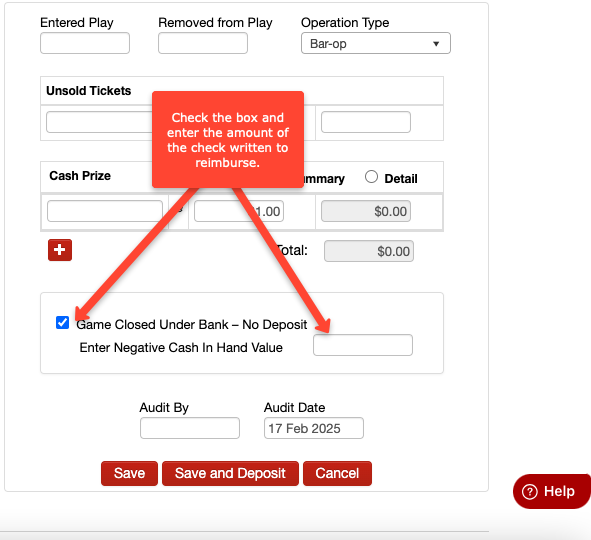
You want to make sure that you ALWAYS put in the same amount as you wrote the check. The amount saved in this box is the amount that is saved into the NGR expense tab and you want to make sure the check and this box match. If the amount is different from the net receipts of the game, we still want to make sure the amount of the check is correctly saved in this box.
If the net receipts matches the reimbursement, the game is perfect. No cash long/short. If the check was MORE than what was expected, the game is short. If the check is LESS than the expected amount, the game is long.
In other words, a game can be negative AND long or short! A bit confusing, but it's important to understand that the expense needed MUST MATCH the audit details.
2. You can also go backwards in that process. You can enter in a NGR expense, prior to the game being audited. You'll go to the NGR expense tab and click the box ENTER AGAINST UN-AUDITED GAME:
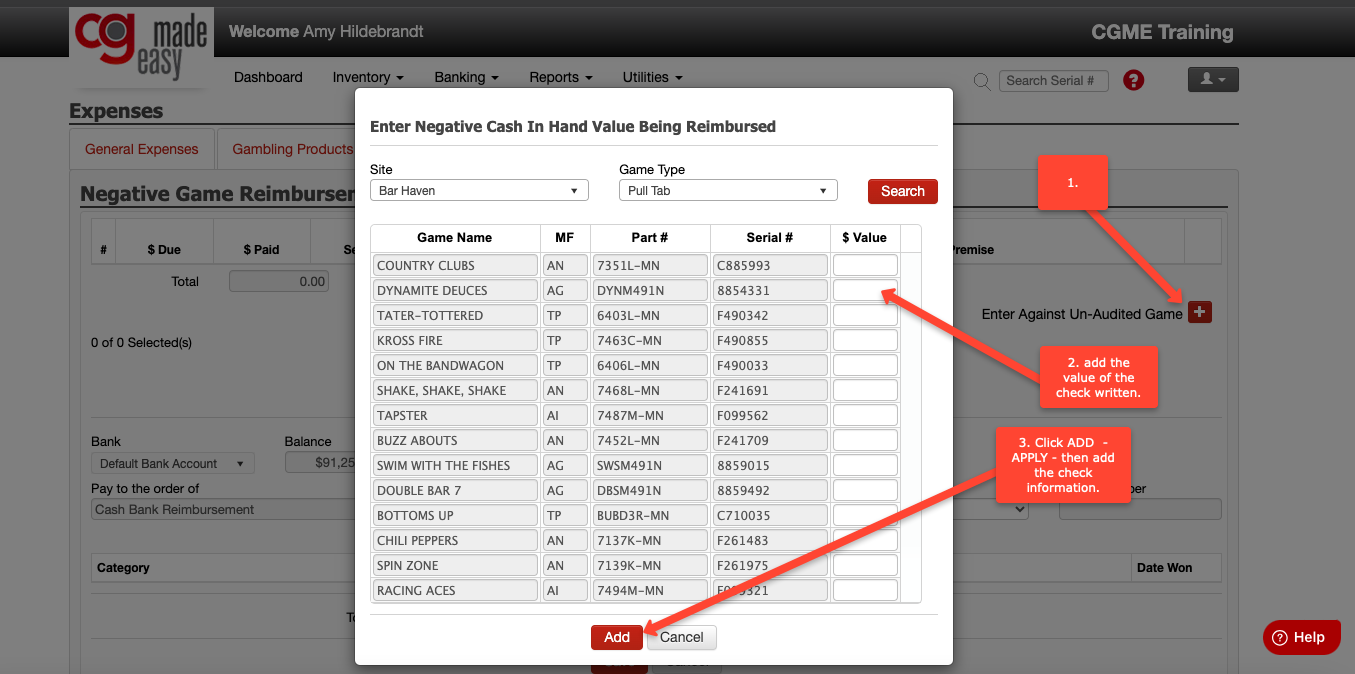
Saving this expense to your register will create a NEGATIVE amount in your NGR expense tab. This will stay there until the audit details are entered and the box GAME CLOSED UNDER BANK - NO DEPOSIT is filled in with the same amount as the check written. Then that row in the NGR expense tab will disappear.
When the audit details are entered and the checks applied to the register, there should be nothing left in your NGR expense tab at month end. Even if you have a game that wasn't reimbursed until the following month, you should still enter in your expense to avoid a POSSIBLE ERROR WORTH REVIEWING message on your month-end dashboard. It's okay to not reimburse until the following month with games that closed on or near month end, but you should still record your payment dated in the following month to ensure that you haven't missed any reimbursements.
FOR BAR BINGO:
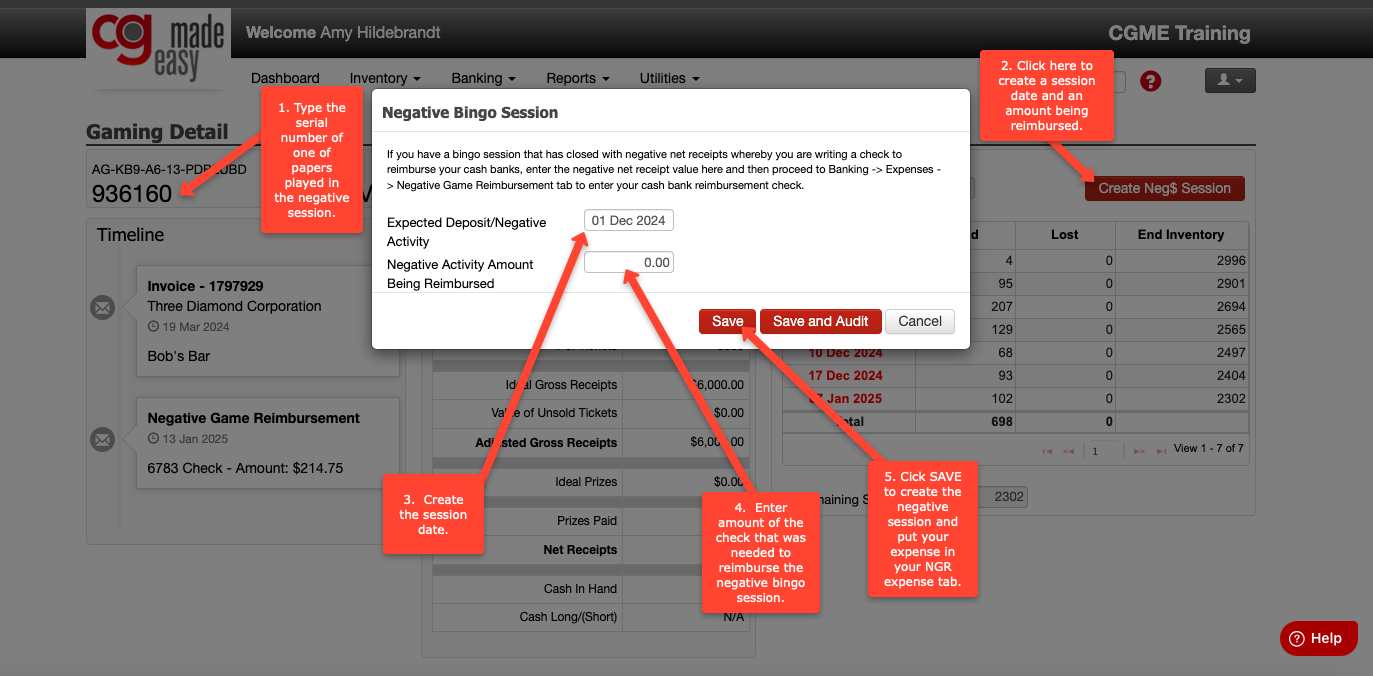
To get the negative expense saved into the NGR expense tab, you'll first create the negative session. Follow the steps shown below:
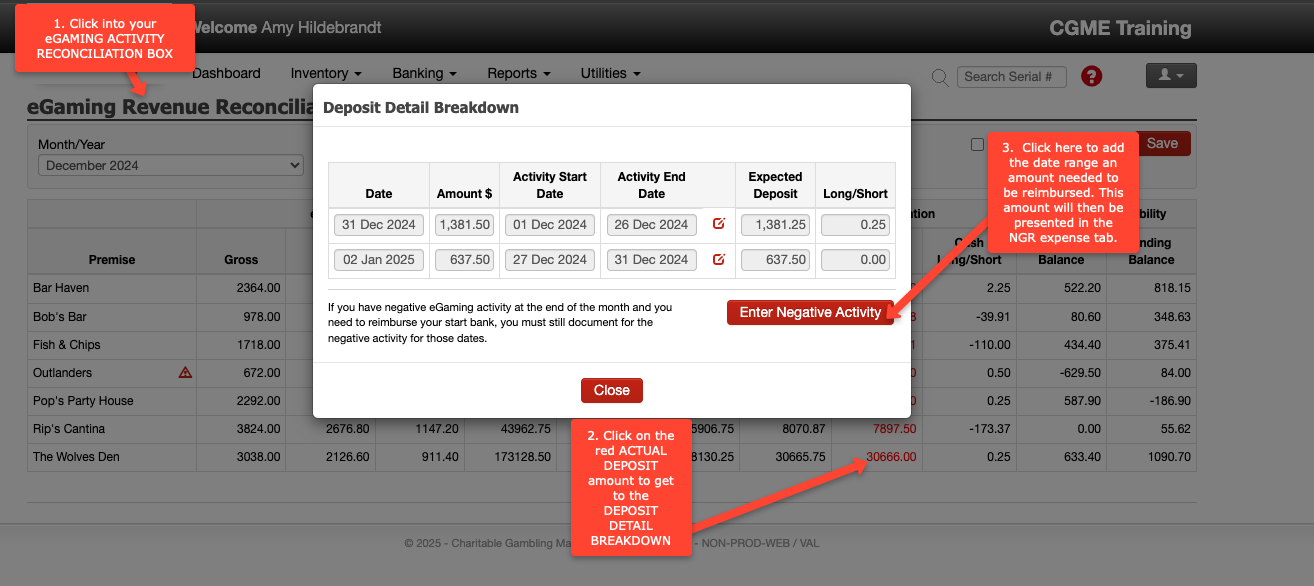
FOR NEGATIVE E-GAMING:
To get the negative expense saved into the NGR expense tab, you'll first need to enter the negative activity. Follow the steps shown below: