Auditing Raffle Sessions
Your entered deposit created the raffle session. That session is now able to be audited.
All un-audited raffle sessions appear on the Dashboard so you can track which sessions still need to be completed prior to closing the month.
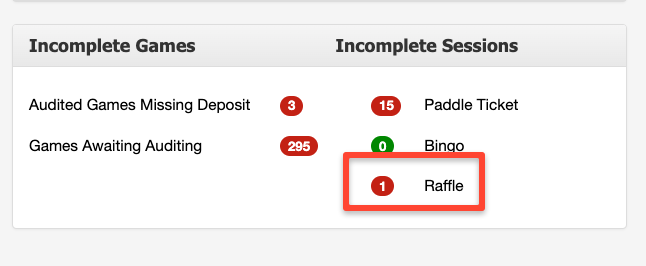
You can also access the sessions to audit by:
Going to Inventory and selecting Gaming Inventory and pulling up the serial number from the desired session.
Entering the serial number within the Search Serial# option at top right corner of any screen.
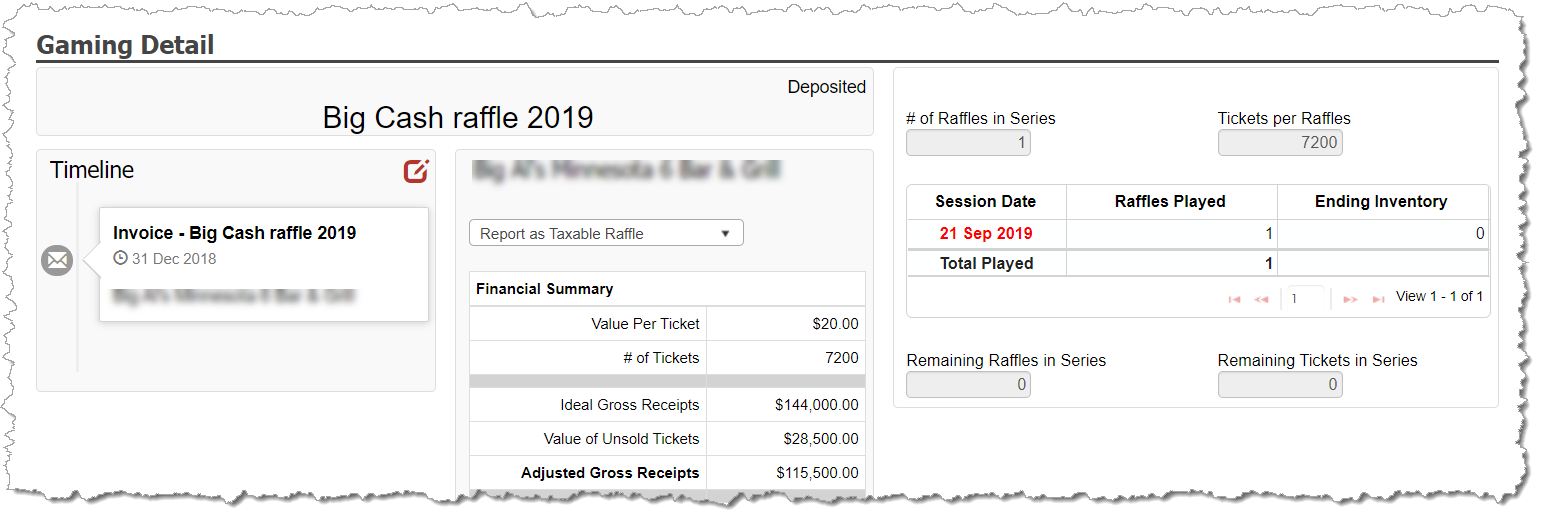
The right side of the Raffle Gaming Detail screen lists the session for that single raffle serial number. You can click into the date to access the Session Detail screen to complete the audit.
Enter Raffle Audit Details
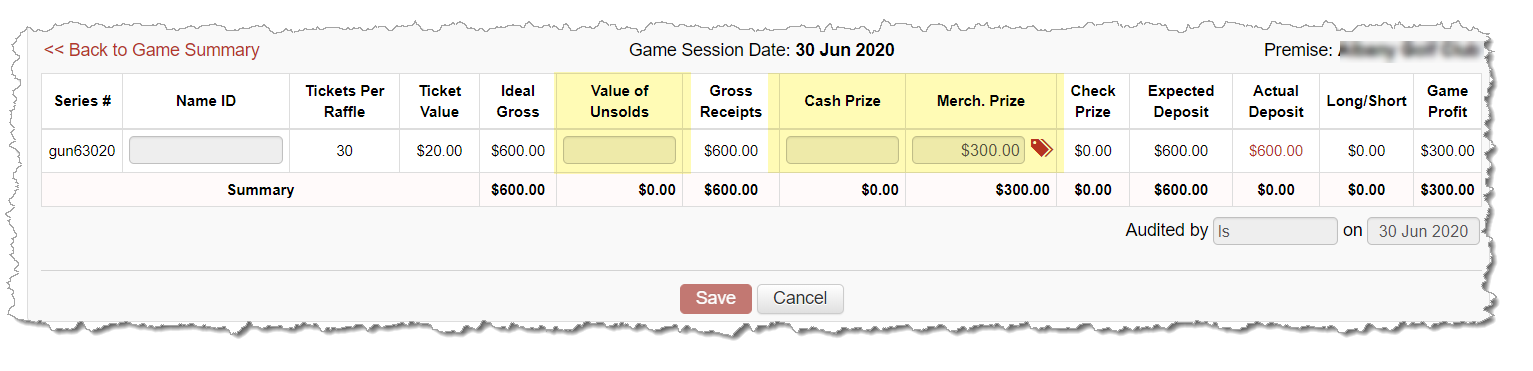
Enter the value of unsold tickets.
Enter the prizes awarded for the serial number
If a Cash Prize, simply enter the value and the rest of the row’s calculations will update.
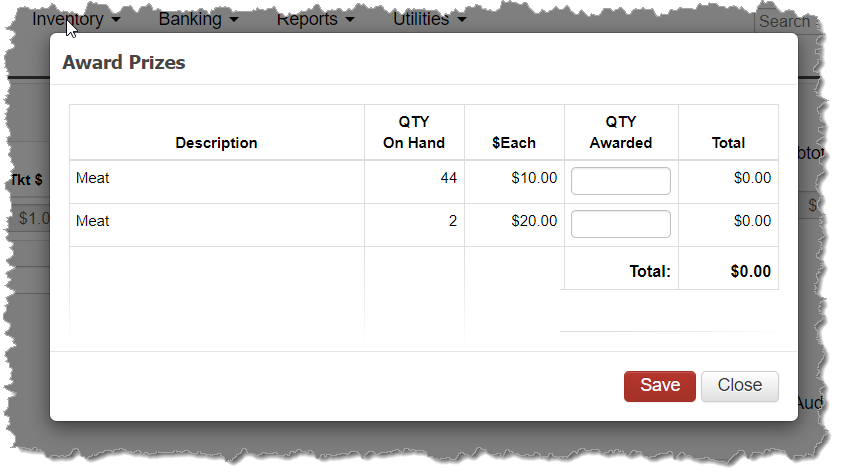
If a Merchandise Prize, select the Prize icon in order to select the merchandise prizes from your inventory to apply to the serial number. Prizes available to select are based on the merchandise prizes received with the Dashboard – Merchandise Reconciliation module. Based on the entry, the rest of the row’s calculations will update.
On the bottom right corner, enter the initials of the auditor and date of the audit for tracking.
Check Prizes Awarded for Raffle Prize
In the event the raffle has a cash prize that is being awarded by a check written by the gambling fund to the winner(s), the check total must appear under the Check Prize column on the Raffle Session Detail screen.
It is not possible to enter a check prize value on the audit screen. The only way this field populates is from the Banking – Expenses screen when the check is entered. Upon entering the check and selecting Check Prize: Raffle from the category dropdown, a pop-up window appears and allows the documentation of the raffle session details in order for that expense to be linked to the audit. After this expense is entered, the value will appear on the on the Raffle Session Details screen and included as part of the overall raffle calculations for the tax return.
Modify Raffle Session Details
Single raffle sessions can be modified or deleted as long as the session date is within a month that has not yet been Processed (closed). All reported/processed sessions can be reviewed, but no modifications are permitted unless you choose to reopen the month of the session.
To modify the session’s audit details, first pull up the Gaming Detail screen for the raffle serial number by entering the serial number in the Search Serial # header field on each screen, or by going to Inventory and select Gaming Inventory and searching and clicking into the serial number. Then click into the session date on the right to modify the session details.
To modify the session’s deposit or session date, select the gaming deposit transaction from the Banking – Bank Register screen to edit and save your desired modifications, or delete your deposit transaction completely in order to fully delete the session.