Deposits for a single game can be entered two different ways in your CG Made Easy.
OPTION 1: BANKING - GAMING DEPOSIT - put the full amount of the deposit in the top left corner along with the correct deposit date, initials of the person depositing, premise and game type. Next to the correct game, simply double click into the APPLIED BOX and what you have in the top left corner will auto-populate in the applied box. SAVE.
OPTION 2: A single game deposit can also be added right in the gaming detail screen when you are auditing the game. But first you need to turn on that feature in your preferences:
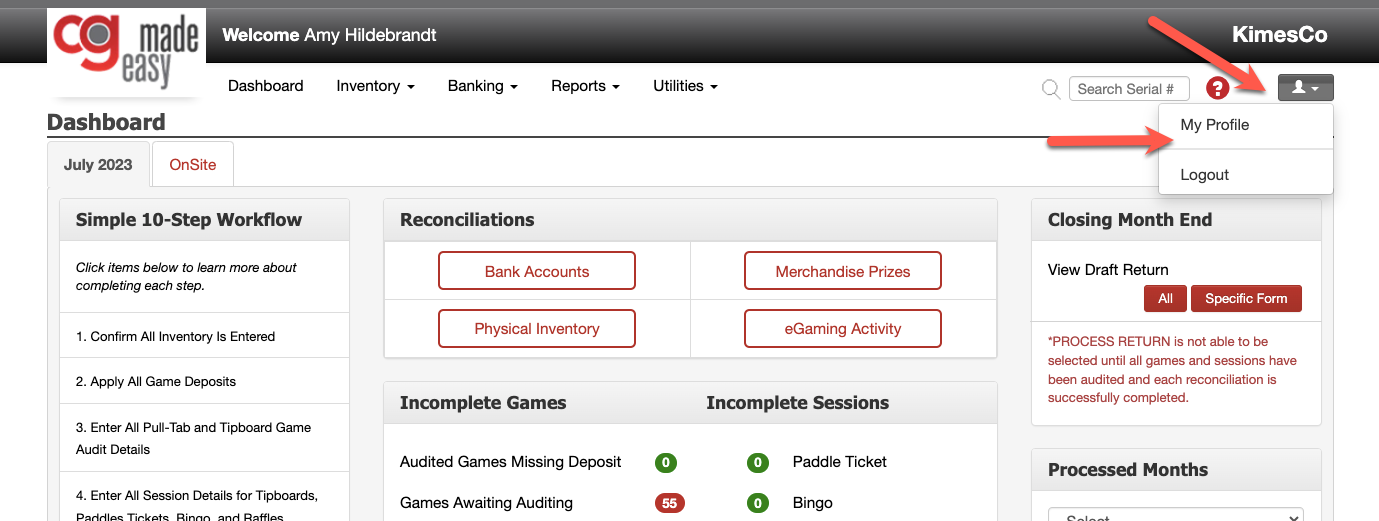
First click on the little gray box with the person icon - click on MY PROFILE:
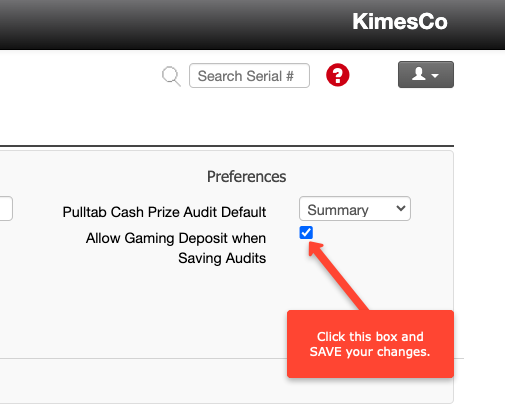
Then you'll want to make sure to check this box:
Next, you'll go to the serial number that you want to audit and deposit. Once you have the IN/OUT dates, unsold tickets, cash prizes paid, and AUDITED BY entered, then you can click SAVE AND DEPOSIT:
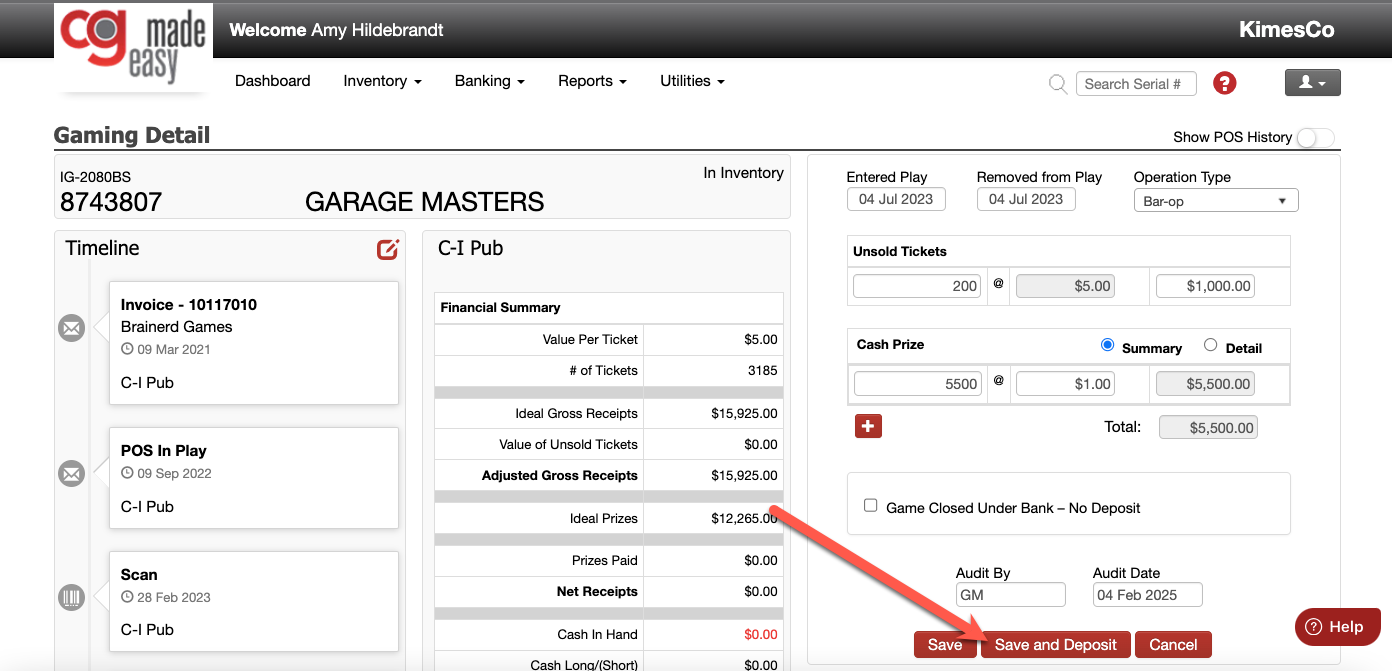
Doing so will create a pop-up box where you will enter the amount of the deposit and the date it was deposited. Now you have entered your audit and deposit details all in the one screen! EASY!