If you have more than one premise, it is possible to transfer inventory from one premise to the other. To do this, pull up the serial number in order to display the game details of the game you desire to transfer.
The game must be in the status of IN INVENTORY. This means the game may not yet have audit details associated, nor can a deposit be entered against the game. If needed, delete the deposit to fully reset the game.
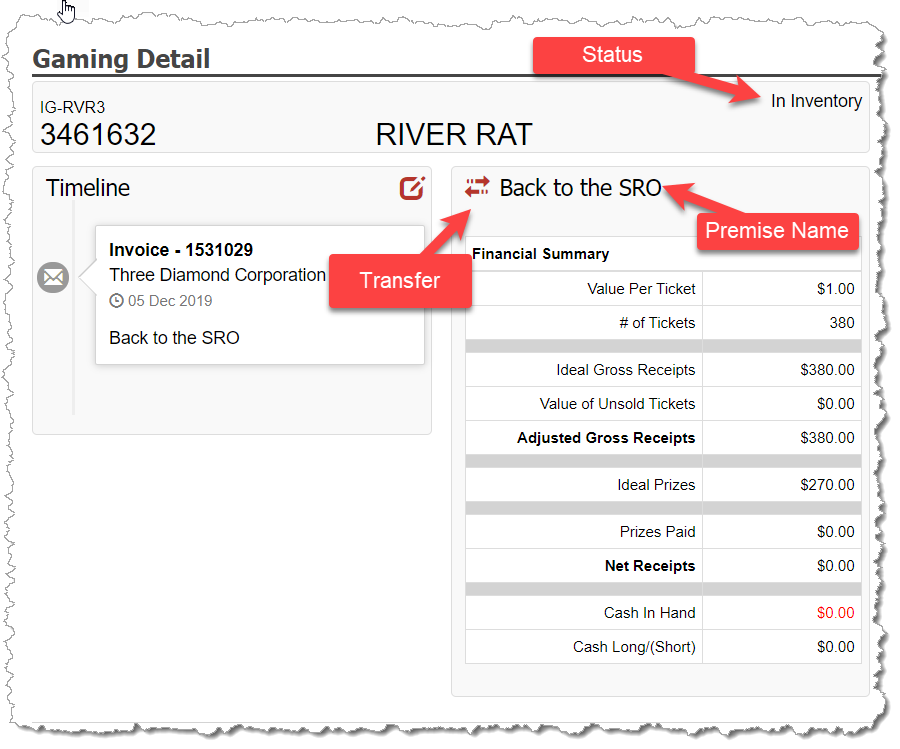
To the left of the Premise Name, click the TRANSFER GAME icon. This will present a pop-up for you to enter the date the inventory transferred to the new premise and the premise receiving the transfer. Once you are satisfied with your selections, enter SAVE.
Delete an incorrectly saved Transfer
Within the Gaming Detail screen for the game, the Transfer activity will display on the left within the Timeline. As long as the game is still IN INVENTORY status and the transfer entered is the same month as the month being worked, the system will allow the Transfer to be reversed. To do so, within the Timeline, click the Trash Can icon next to the transfer activity you want to remove.