Maintaining accurate records relating to your merchandise inventory is necessary both to ensure your tax return remains balanced, but also as a Gambling Control Board requirement. CG Made Easy assists in helping you maintain accurate records for merchandise by providing a monthly process to reconcile your merchandise inventory prior to completing your tax return.
Screen Definition
The merchandise reconciliation screen is made up of two sections:
Unpaid Merchandise Liability
Merchandise Value On Hand
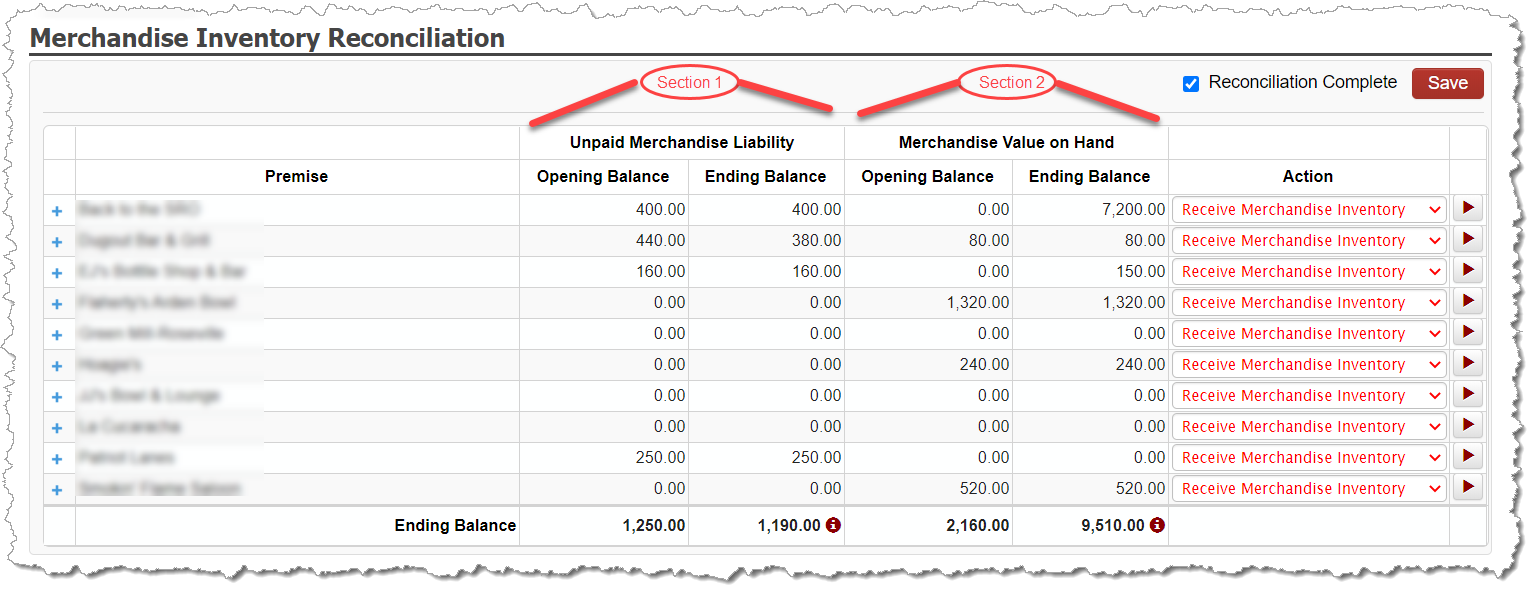
The ending balances of these two sections are reported on the Schedule F of the tax return.
Within each of these sections, tracking your merchandise assets correctly helps you stay in compliant with the rules required by the Gambling Control Board, but also makes sure you are correctly completing your tax return.
Click on the PREMISE NAME to expand the screen to see the monthly merchandise activity associated to that premise including:
all merchandise received in the month
all merchandise returned (refunded) in the month
all merchandise awarded as prizes against games and sessions played in the month
all merchandise sold in the month
all merchandise donated in the month (ie: meat prizes donated to a food shelf)
all merchandise spoiled in the month (ie: meat that went bad before it was awarded)
all payments made to vendors for merchandise in the month
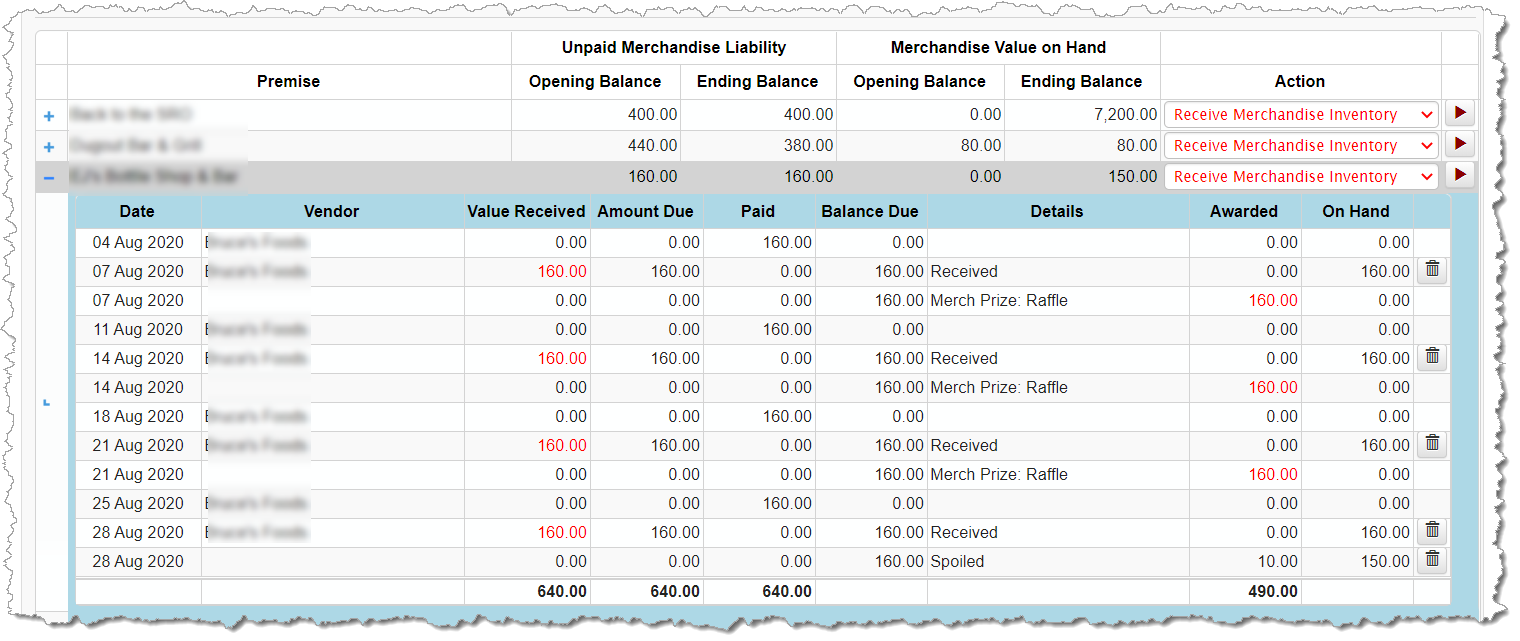
Merchandise Prize Liability (left side)
When you receive merchandise from your vendor you naturally owe the vendor for the amount of merchandise received. Some organizations pay for merchandise at the same time it is delivered or picked up. Other organizations have a line of credit with a vendor where the organization pays based on agreed-upon terms (such as monthly).
The Prize Liability section tracks the merchandise received and the corresponding payments made. The value of any merchandise that is received into inventory but not yet paid for as of the end of each month is required to be reported on the tax return form 100F Line 16 as your merchandise liability.
From the expenses entered onto the bank register, CG Made Easy is aware of payments made using the expense category of Merchandise Prizes. You must, however, document the merchandise details of what was received into your inventory from your vendors is necessary.
Merchandise Value On Hand (right side)
When you receive merchandise into your inventory, you now have an asset that must be tracked through to the point in which an activity happens where it is no longer in your possession (ie: awarded as a prize for a game or session). The Merchandise Value On Hand section of the Merchandise Prize Reconciliation screen enables you to track the merchandise received and the corresponding prizes awarded. The merchandise items (and corresponding value) that are received into inventory but not yet awarded as prizes (or removed in some other way) at of the end of each month is required to be reported on the tax return form 100F, Line 10.
From the game and session audits entered, CG Made Easy is aware of merchandise prizes awarded as part of paddle ticket sessions, raffle sessions, bingo sessions, tipboard games, and sportsboard games. What is not known by CG Made Easy is when merchandise is received into your organization’s inventory. The method for Receiving Merchandise into the system is described below.
Receiving Merchandise
Documenting the receipt of merchandise assets into your inventory must be manually entered. As described above, CG Made Easy is able to calculate the prizes awarded based on the game and session audits, and it is able to calculate the prizes paid based on the expenses entered into the bank register for merchandise, but it is not able to calculate the amount of merchandise received, nor when it was received.

To receive your merchandise into inventory, make sure the dropdown action associated to the desired premise shows RECEIVE MERCHANDISE INVENTORY. Then select the PLAY icon.
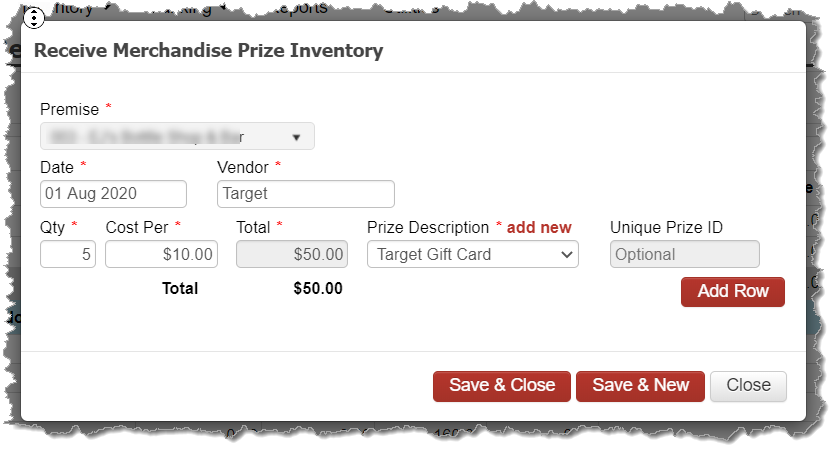
On the popup, enter the date merchandise was received, the vendor, the quantity or prizes, the cost per prize, and the prize description from the dropdown.
To add a new Prize Description, click the ADD NEW option above the field which will allow the user to enter a new Prize Description.
Click SAVE. Repeat this process for each merchandise receipt in the month for each premise.

Saving the Merchandise Reconciliation
Based on the activity of both the Liability (left side) and On Hand (right side), the system displays the totals for each premise, as well as grand totals for the organization as a whole. As the activity across the rest of the system is entered such as payments and game audits using merchandise, as well as the newly received merchandise inventory entered on this screen, the totals will continue to adjust.
Once you have completed the entry of your information in the system, resolved any errors, and you are satisfied the ending balances are correct, select the checkbox in the top right corner and click SAVE. This will result in the green checkbox on the Dashboard required for completing the month and processing the tax return. In addition, the draft tax return is updated with the ending balance numbers you approved for both the Liability and On Hand merchandise values.