When an unplayed game is not able to be returned to a distributor, but it is also no longer a game you wish to carry on your inventory, you may contact MN Revenue and ask for approval to destroy a game. MN Revenue will provide you direction on how to physically destroy it or how to send it into them for destruction.
Destroyed games must then be reported on a B2 as Destroyed with Approval. But destroyed games or typically documented whereby the net receipts are $0, therefore preventing any tax obligations in association to the game.
For Pulltabs, Tipboards, Sportsboards, PaddleWheel Games:
Enter the Game’s serial number to pull up the Game Detailscreen. Audit the game entering the following:
Game In Play date (date game is destroyed)
Game Removed from Play (date game is destroyed)
Enter the gross receipts under the Unsold Tickets. In other words, all tickets in the game should be documented as unsold.
For the Cash Prizes, enter $1.00 @ $0.00 = $0.00 in order for the system to save the prize value as $0.00.
Check the box GAME CLOSED UNDER BANK - NO DEPOSIT - enter in $0.00. (This step is necessary to show that the game is DEPOSITED).
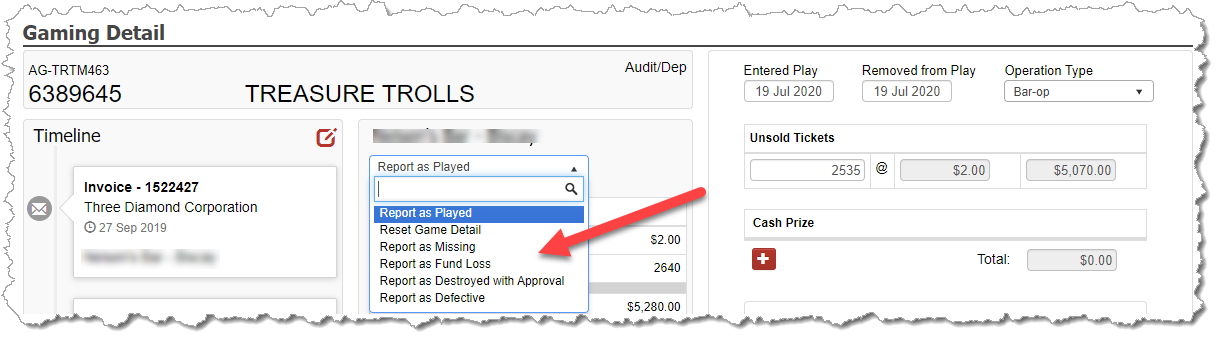
Once the game audit is complete and the game’s status is Audit/Dep, select the Report as Destroyed with Approval option from the dropdown so the game is included on a different B2 than the report of the reported games.
For Paddle Tickets:
Enter the Game’s serial number to pull up the Game Detail screen.
Click the ADD UNSOLDS button and check all the serial numbers in the paddle ticket series. At the bottom, enter the date the game was destroyed as the session date.
Once the game audit is complete and the game’s status is Audit/Dep, select the Report as Destroyed with Approvaloption from the dropdown so the game is included on a different B2 than the report of the reported games.
For Bingo Paper:
Since bingo paper is not reported on the B2, the only thing necessary to do is remove the bingo paper from your inventory. To do this, create a bingo session that will be just for documenting the destroyed paper.
Pull up the Game Detail screen for the serial number you are having destroyed.
Click the CREATE NEG$ SESSION button and complete the pop-up by entering the date the paper was destroyed and $0.00 in the amount field.
Once the session is created, audit the session leaving everything as $0, but entering the number of sheets destroyed in the Lost/Ruined column.
If you have more than 1 bingo serial number where sheets are being marked as destroyed, you may add the additional serial numbers to the same session and also include the Lost/Ruined for each serial number.