All gaming deposits, other deposits, and expenses entered into CG Made Easy must ultimately tie out to a matching transaction within the bank statement provided by your bank. The bank reconciliation process enables you to:
Ensure all anticipated transactions appear on the bank statement with the correct values.
Identify any missing transactions that your bank includes on the bank statement that you do not have entered in CG Made Easy.
Confirm any missing transactions that you have documented in CG Made Easy that have not yet cleared the bank.
The results of the bank reconciliation are then used as part of the Schedule F on the monthly tax return. Therefore, the complete reconciliation process of the bank statement is a requirement before closing out the month and processing your tax return.
Bank Reconciliation Process
To begin the bank reconciliation process:
Click on the Bank Reconciliation link on the Dashboard within the Reconciliations section.
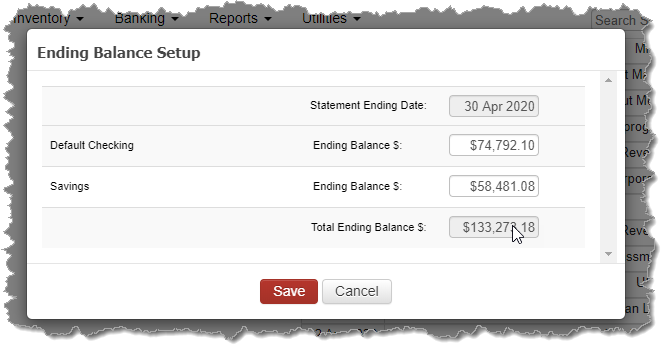
If this is your first time going into the Bank Reconciliation screen for the month, you will be asked to enter your bank statement ending balance.
If you have multiple checking accounts and/or savings accounts, you must enter the bank statement balance for each bank account individually.
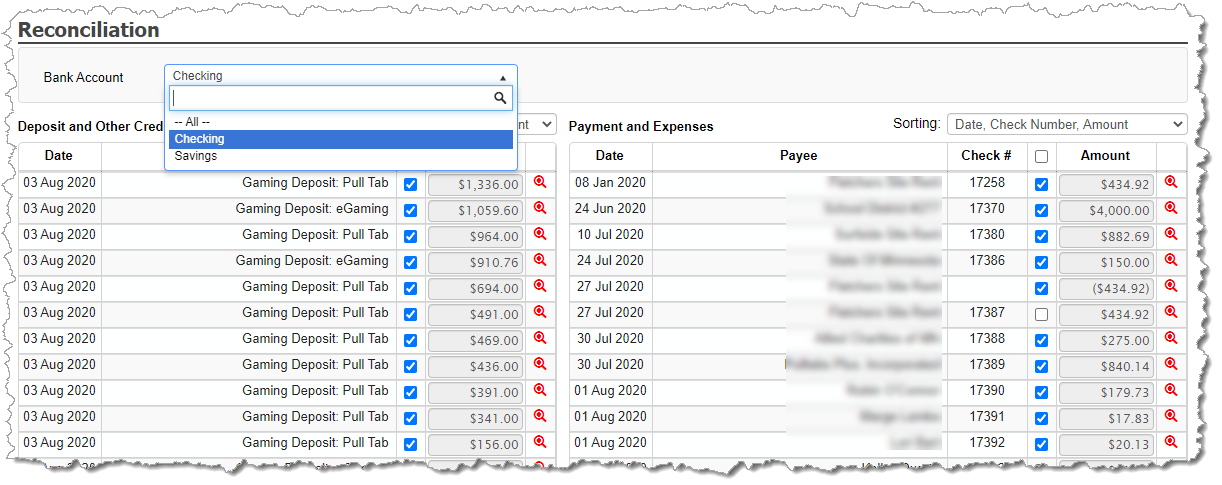
The top of the screen offers you the option to sort your transactions to better match with your individual bank statement.
Begin clicking off each transaction on the screen that corresponds to a transaction on your bank statement. The left side of the screen are credits/deposits. The right side of the screen are debits/expenses.
Each section offers a TOTAL so you can review and compare those transactions that you have checked off to ensure they fully match with your bank statement.
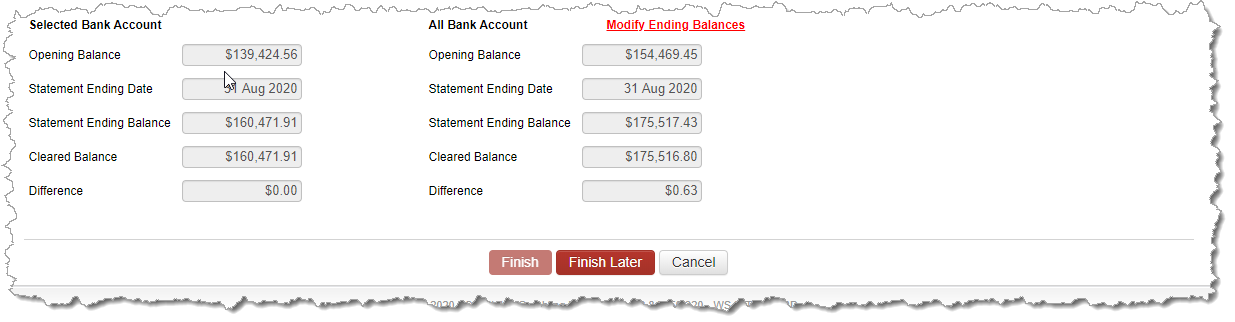
The reconciled value must be $0.00 in order to complete (or FINISH) the reconciliation. The FINISH button will not be available to select until the reconciled value is $0.00. At any point in time, however, you can choose to select FINISH LATER. This will save the items you have selected as of that time so you can leave the screen and come back at another time to finish. In addition, this allows the option to save your work when you discover you must edit a specific transaction in your bank register in order to complete your reconciliation.
Once your reconciled value is $0.00 and you have selected FINISH, the dashboard will update with the green rectangle making you one step closer to completing your month-end process. In addition, your reconciled transactions will be locked and will not be editable unless you first un reconcile your bank statement.
Your tax return’s Schedule F will now be updated to display your reconciliation results. The sum of all transactions on your bank register that were not reconciled (checked off) as part of the reconciliation process are displayed.
Line 1 = your bank statement’s balance
Line 2 = deposits that did not get checked off as part of your reconciliation.
Line 3 = expenses that did not get checked off as part of your reconciliation.
Line 4 = ending balance (which matches your bank register balance as of the end of the last transaction of the month).

Multiple Bank Account Reconciliation
If you have more than one bank account (i.e. multiple checking accounts and/or saving accounts), as you enter transactions onto the bank register, you are provided with the ability to document which bank account the transactions are associated. This enables you the ability to reconcile each bank account individually.
Each bank account must be reconciled to a difference of $0.00 before being allowed to complete (FINISH) the bank reconciliation. While it is possible to reconcile all bank accounts together in one group, this can be difficult. Instead, select a bank account from the top of the screen. This will limit the selectable transactions on the screen to only those saved within the bank account selected.
The bottom of the screen on the left side shows the reconciliation status for just the bank account selected.
Within the center section at the bottom of the screen, the reconciliation status for the consolidation of all bank accounts will continue to be displayed.
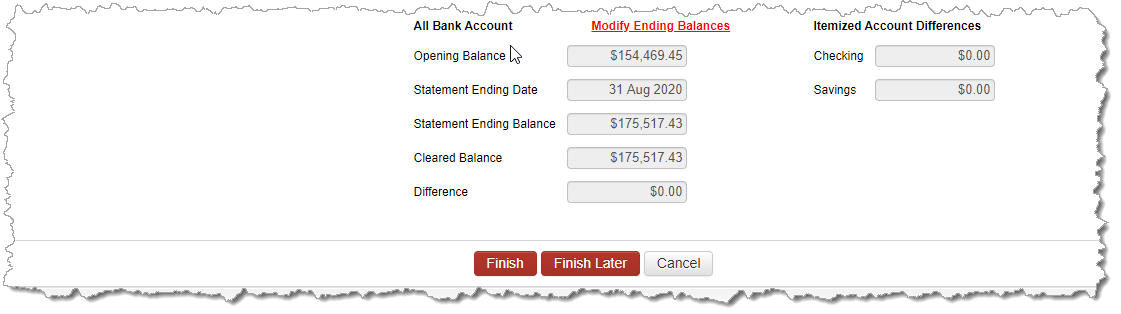
When ALL bank accounts are selected from the top, then the bottom right side of the screen includes the difference of each bank account so you can quickly identify those accounts that still need attention.
Un-Reconciling the Bank Statement
It is common that mistakes are discovered after the bank account is reconciled. Should you need to modify a transaction that is already reconciled, you must first un reconcile the bank statement. To do this, go to the bank register and find a reconciled transaction (those with an R instead of an NR on each transaction row.) Click EDIT. The application will then offer you the option to un reconcile the bank statement for the month. Once you agree to un-reconcile, your green rectangle will disappear from the dashboard. You can make your modifications and then click on the Bank Account link under the Reconciliations section of the Dashboard to re-reconcile your bank statement.
Savings/Investment Accounts
There is nothing unique about the bank reconciliation of a savings or checking account. The process is identical. Each bank account in the application is identified to be either a checking or savings bank account in order for the correct bank balances to appear on the tax return. The bank balances for checking accounts appear in the top reconciliation section of the Schedule 100F, while the bank balances for the savings account appear within the Additions section of the Schedule 100F.
