To enter your audit details, you can get to the Game Audit screen in 3 ways:
Go to INVENTORY and choose GAMING INVENTORY from the dropdown. Enter the serial number and click on the resulting serial number in the red text.
In the top right corner of any screen, enter the serial number into the SEARCH SERIAL # field.
From the Dashboard, if your serial number is listed in one of the circles, you can click it to get to the GAMING DETAIL screen.
Entering Audit Details
When a game is first pulled up, the game status will either be IN INVENTORY or DEPOSITED. The right side will be blank until the AUDIT button is selected to complete the game audit details.
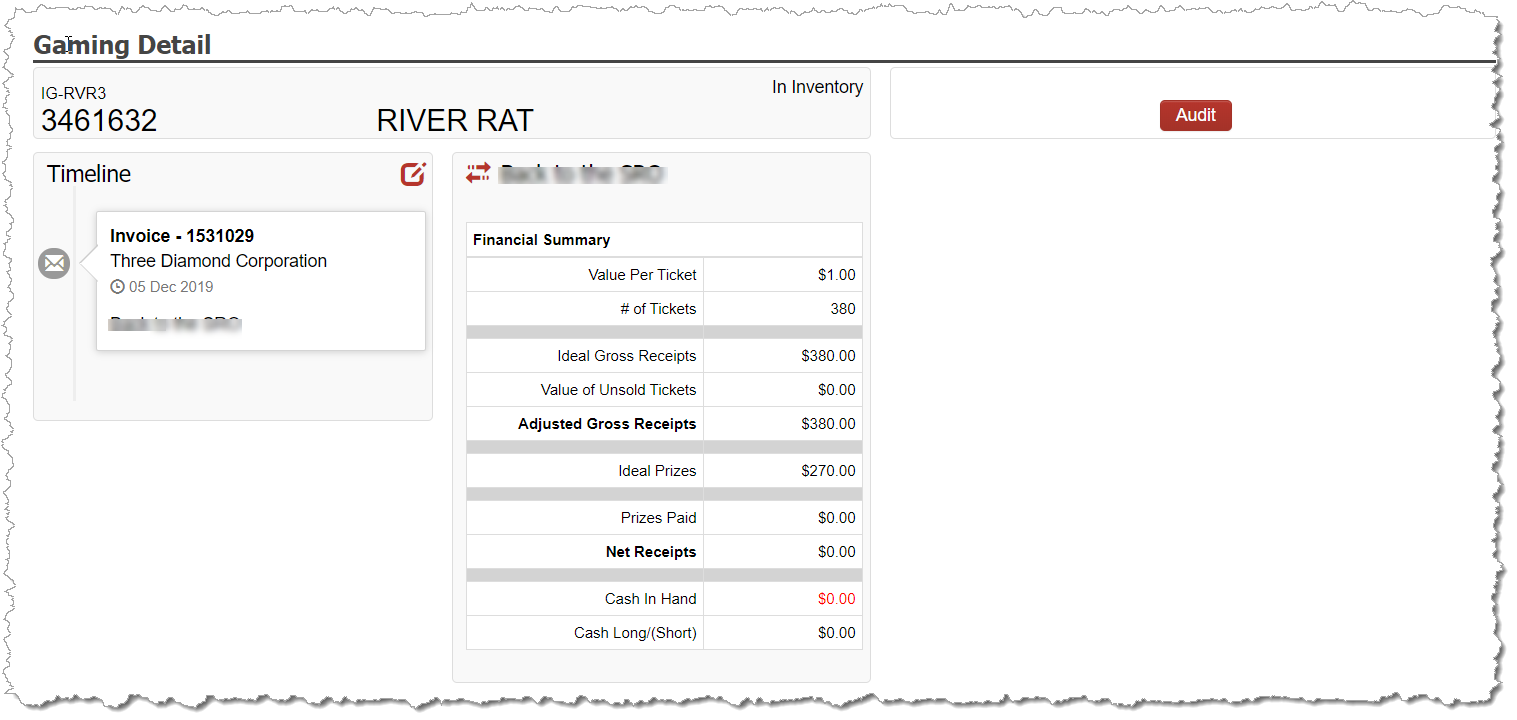
Upon selecting AUDIT, the audit details appear enabling you to enter the required audit details:
Pulltab Detail Game Audit
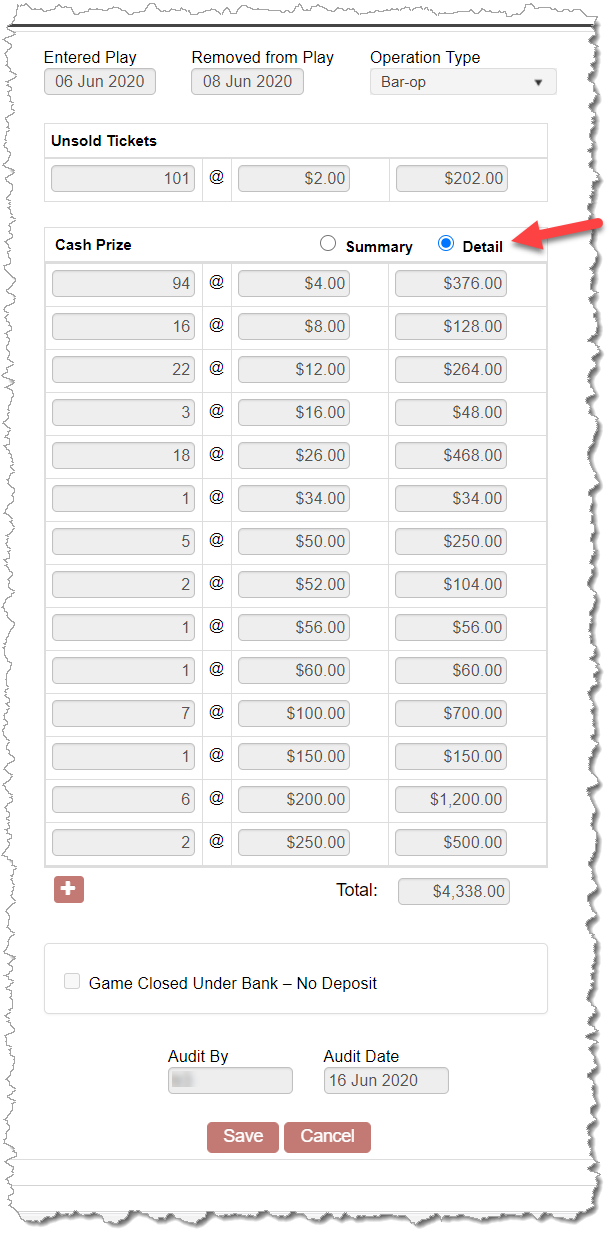
Enter Play and Remove from Play: Dates the game was available for sale by customers. The month entered within the Remove from Play field will determine the month in which the game is reported on the tax return.
Operation Type: This field defaults based on your premise setup selections under UTILITIES - ORGANIZATION DEFAULTS. You can modify the selection, when necessary, using the dropdown. For example, if the premise is commonly a Bar-Op, that can be the default, but if you also have a Machine where some games are played, you can modify the dropdown so the machine games are reported on the separate B2 within the tax return, as required.
Unsold Tickets: Enter the number of counted unsold tickets from your auditing process.
Cash Prizes (for Pulltabs Only): Enter the number of prizes for each prize value. If the game was purchased from a distributor that has integrated with CG Made Easy, then the prize breakdown values prepopulate when DETAIL is selected.
Note: If you need to add additional prize rows for a last sale, simply click on the + icon to add a row.
Audited By and Audited Date: Enter the name/initials of your organization’s game auditor that completed the audit for the game along with the audit date.
NOTE: If you have audited your games and documented the audit results on a separate LG861 form outside of CG Made Easy which you plan to maintain for 3.5 years which includes the auditor’s signature and date, then it is not required to detail your prize winners within the Winning Prize selection on the Audit.
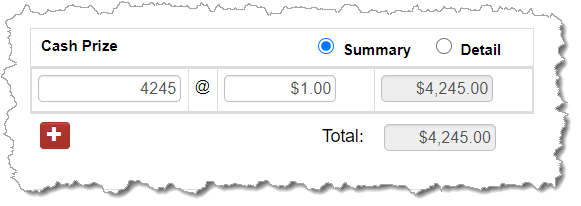
Instead, you can simply enter the sum value of all winning prizes as one lump sum on a single row. Simply select SUMMARY instead of DETAIL and enter the value of the total prizes from the audit.
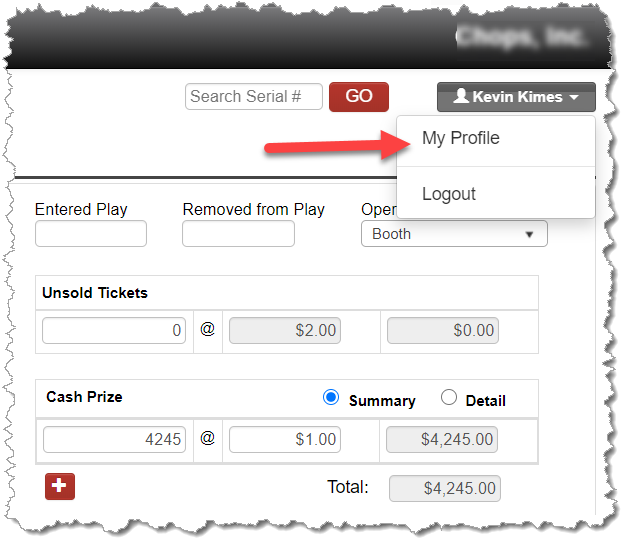
TIP: If you desire to update the screen’s default Cash Prize option for pulltab games between SUMMARY and DETAIL, you can control the default for you personally under your user profile. Navigate to your name on any page and select MY PROFLE. On the screen, you can control your GAME DETAIL CASH PRIZE AUDIT DEFAULT.
Negative Receipt Game (Game Closed Under Bank)
When you have a game that closes under bank, there is normally no deposit. To document the negative cash-in-hand value, check the box on the right side within the Audit Details section and enter the negative cash-in-hand value. The value entered must be either a negative number, or 0.00.
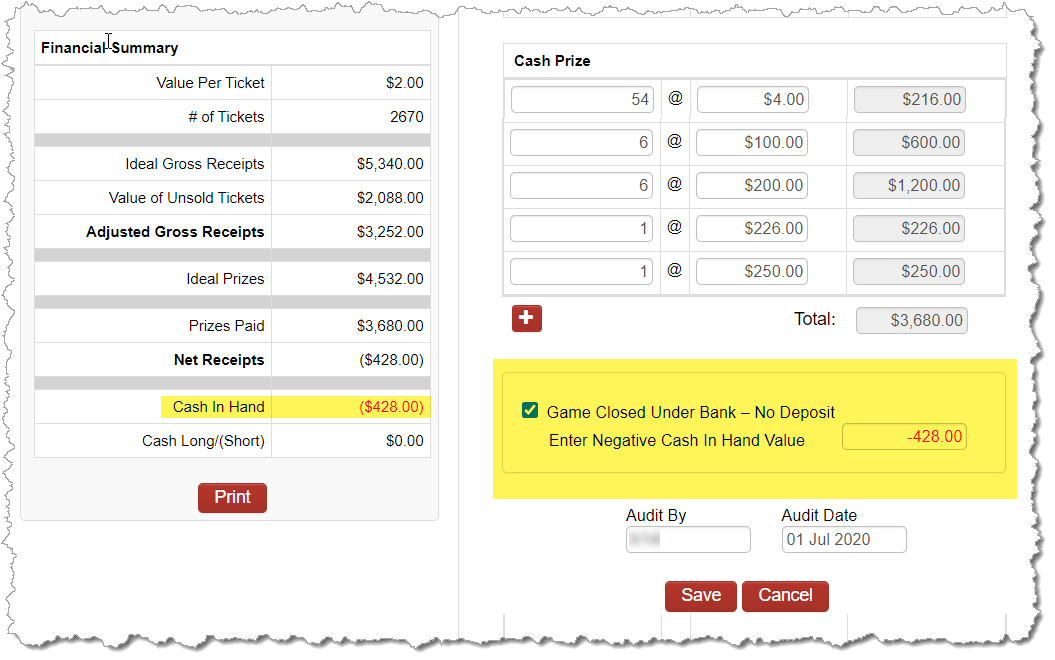
The value entered on the right will be reflected within the center cash-in-hand calculation within the Financial Summary. The value will also appear under the Expenses – Negative Game Reimbursement tab as a liability for when you apply the check written to reimburse your cash bank.
Printing LG861 for Signature
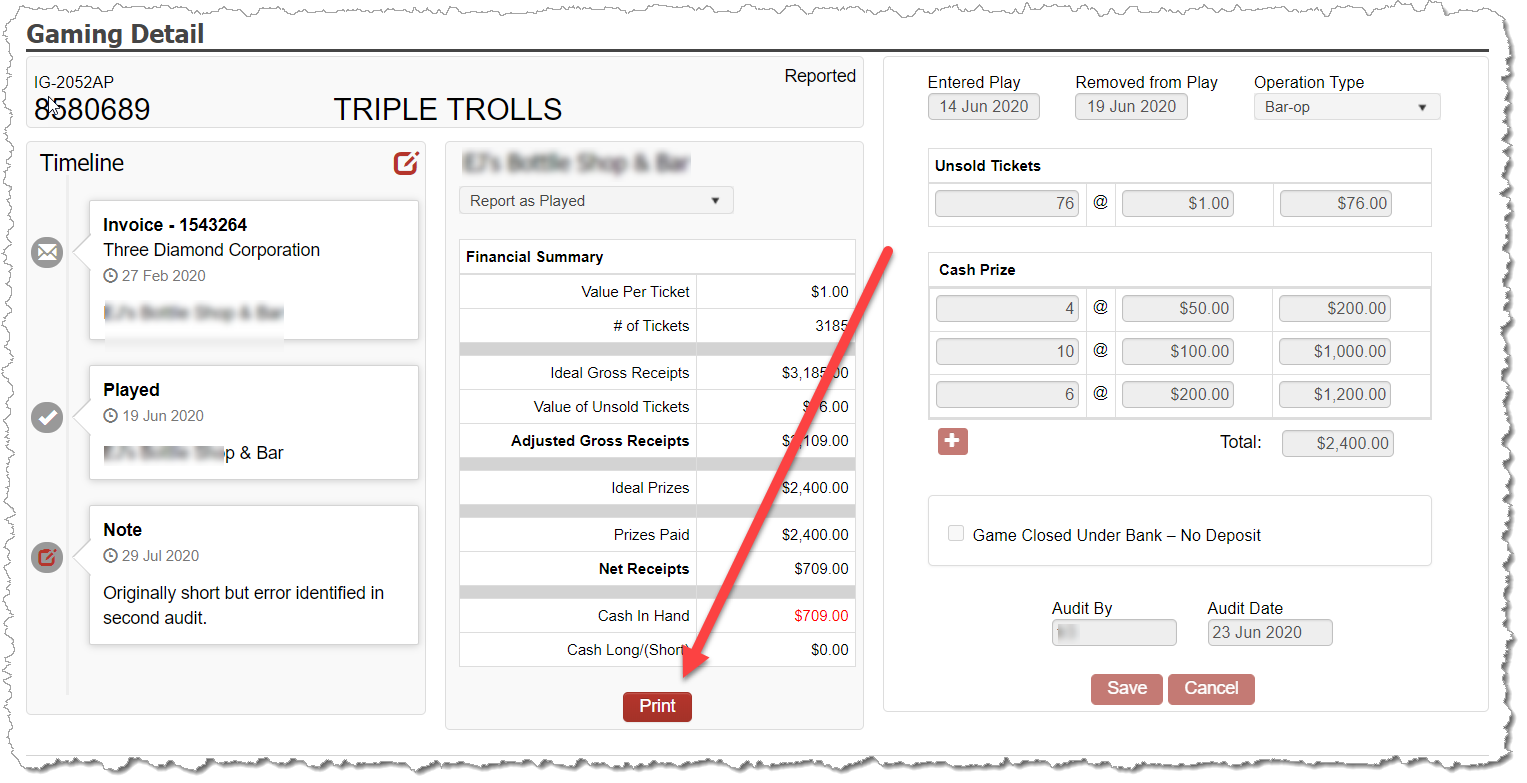
Per the requirements of the Gambling Control Board, a signature is required on an LG861 by the person completing the game audit. Therefore, once the audit details are complete and the complete Financial Summary is displayed, the PRINT button on the lower left corner of the page enables you to print the LG861 to capture the required signature of the game auditor for your records.