At the end of each month, verifying your gaming inventory that is still unplayed or presently in play at the premise is part of the required process for your operation. This includes documenting a physical validation of inventory at each premise and then comparing that physical validation against your perpetual inventory.
CG Made Easy maintains your perpetual inventory in the application and then provides you with the necessary tools to help complete this monthly requirement.
Understanding Perpetual Inventory vs Physical Inventory
Your perpetual inventory is automatically maintained based on:
Inventory purchased and received into your system
Inventory that is audited and thus removed from your system.
As CG Made Easy is updated with the above activity, it is therefore possible to take a specific point in time and identify exactly what inventory was on hand at that moment.
Each month, a physical inventory must be taken. A member of your operation must confirm all gambling product on hand at your premises. The resulting goal is to cross-reference this documented physical inventory with the CG Made Easy perpetual inventory to confirm all inventory is where it is expected to be.
Preparing for your Physical Inventory Check at Your Premises
Prior to going to your premise to conduct the documenting of your physical inventory, CG Made Easy provides you with an option to PRINT your anticipated physical inventory.
From the Dashboard, click Physical Inventory under the Reconciliations in the center of the screen.
On the top right, click the PRINT button to generate the report to take to each premise.
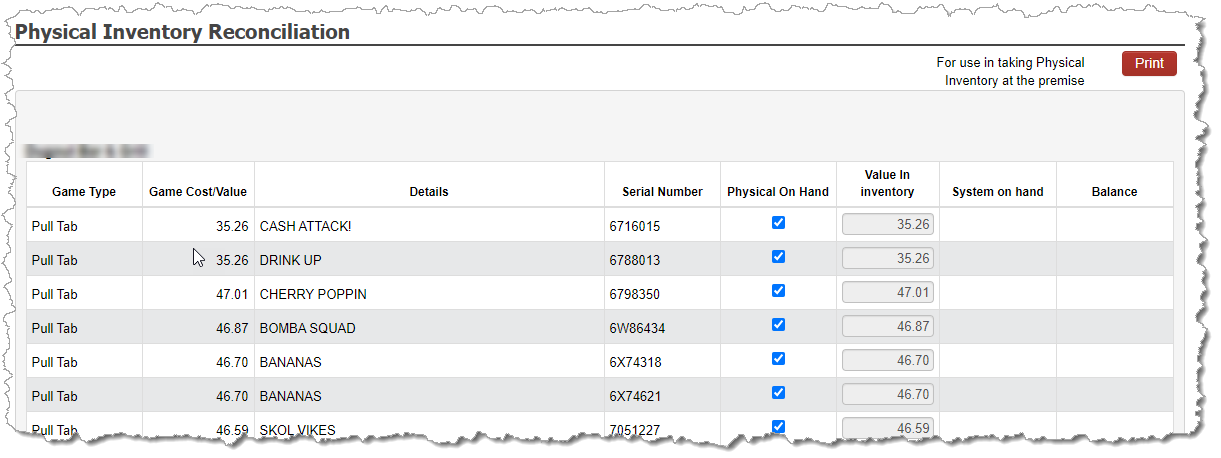
NOTE: When you print this at the end of the month, it is likely that it will include games that will not be on-hand at your premises since you likely have games that are complete and have been removed from play, but you and your team have not documented the complete game audit and/or corresponding deposits yet in CG Made Easy. Therefore, the purpose of this report is to give you a likely list of possible games for you to simply check off once you have verified they are on hand. But don’t be surprised if the report has games listed that are not on hand. Just leave these unchecked.
Documenting your Physical Inventory Results
Upon return from conducting your physical inventory, you next steps are to enter these results into CG Made Easy.
From the Dashboard, click Physical Inventory under the Reconciliations in the center of the screen.
Click off each row on the screen that you have verified to be on hand at the premise.
Leave any games you were not able to verify on hand as un-checked.
Click SAVE at the bottom.
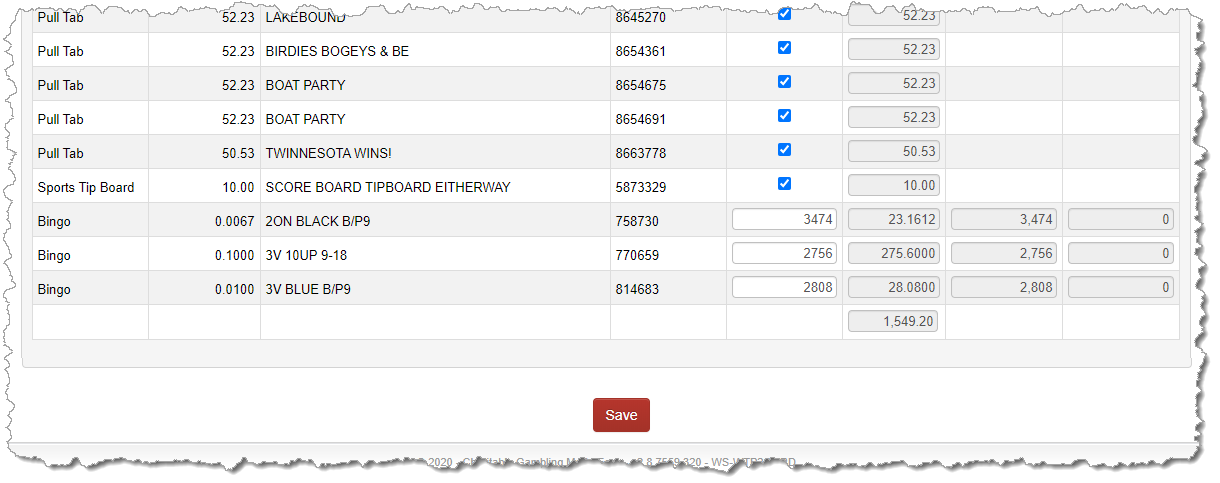
Any serial numbers that you left as unchecked will continue to appear on your dashboard as Games Awaiting Auditing. This is helpful to you because ultimately, each month every game must either be accounted for on the physical inventory and marked as such, or it must be audited and prepared to be reported on the tax return. Once you have clicked off your on-hand games on the physical inventory, all that will be left on the dashboard are those games that still require auditing and/or depositing.
Documenting Physical Inventory for Bingo and Raffles
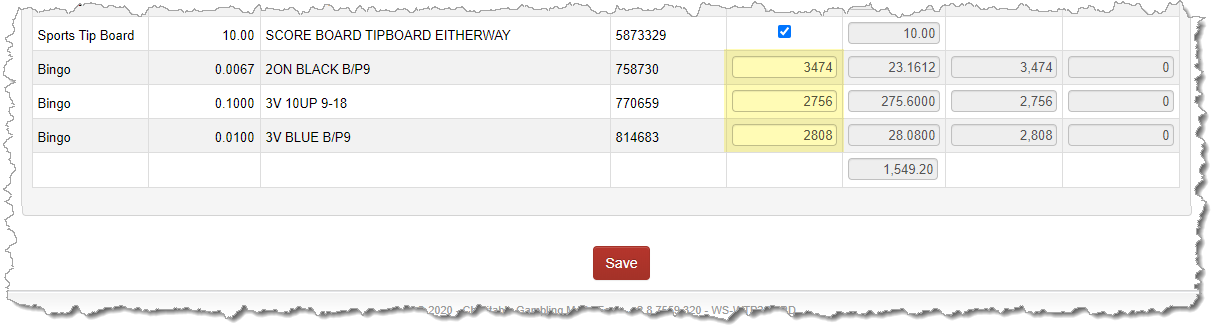
Bingo paper and raffle rickets are still managed by serial number, but because the bingo and raffle inventory can span across multiple months, the tracking of these are based on the number of bingo sheets or raffle ticket series you have on hand at the end of the month.
Instead of checking off a box, enter the number of bingo sheets or packets you counted as being on hand and/or the number of raffle ticket series (or raffle ticket packets for Multi-Raffles) you counted as being on hand. Once all your bingo and raffle sessions have been entered, numbers of sheets/tickets should match the perpetual inventory numbers the system is presenting to you for your number of bingo sheets and number of raffle tickets for each serial number.
Finalizing Your Physical Inventory Reconciliation
Once all games have been accounted for whereby each game is either prepared to be reported on the tax return for the month or the game has been checked off as being on-hand on the Physical Inventory Reconciliation, your dashboard will present a green rectangle surrounding Physical Inventory on your dashboard. This is a requirement in order to close the month and process your tax return.
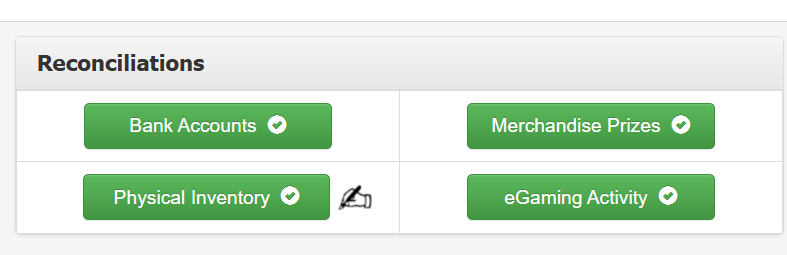
Once you are presented this green rectangle, you are also presented with an option to print an official copy of your Physical Inventory which provides you with a signature line. MN Gambling Control Board rules require that the person who conducts the physical inventory validation at each premise sign and date the document as the official physical inventory record for that month. The signed document must then be maintained in your records for 3.5 years.